
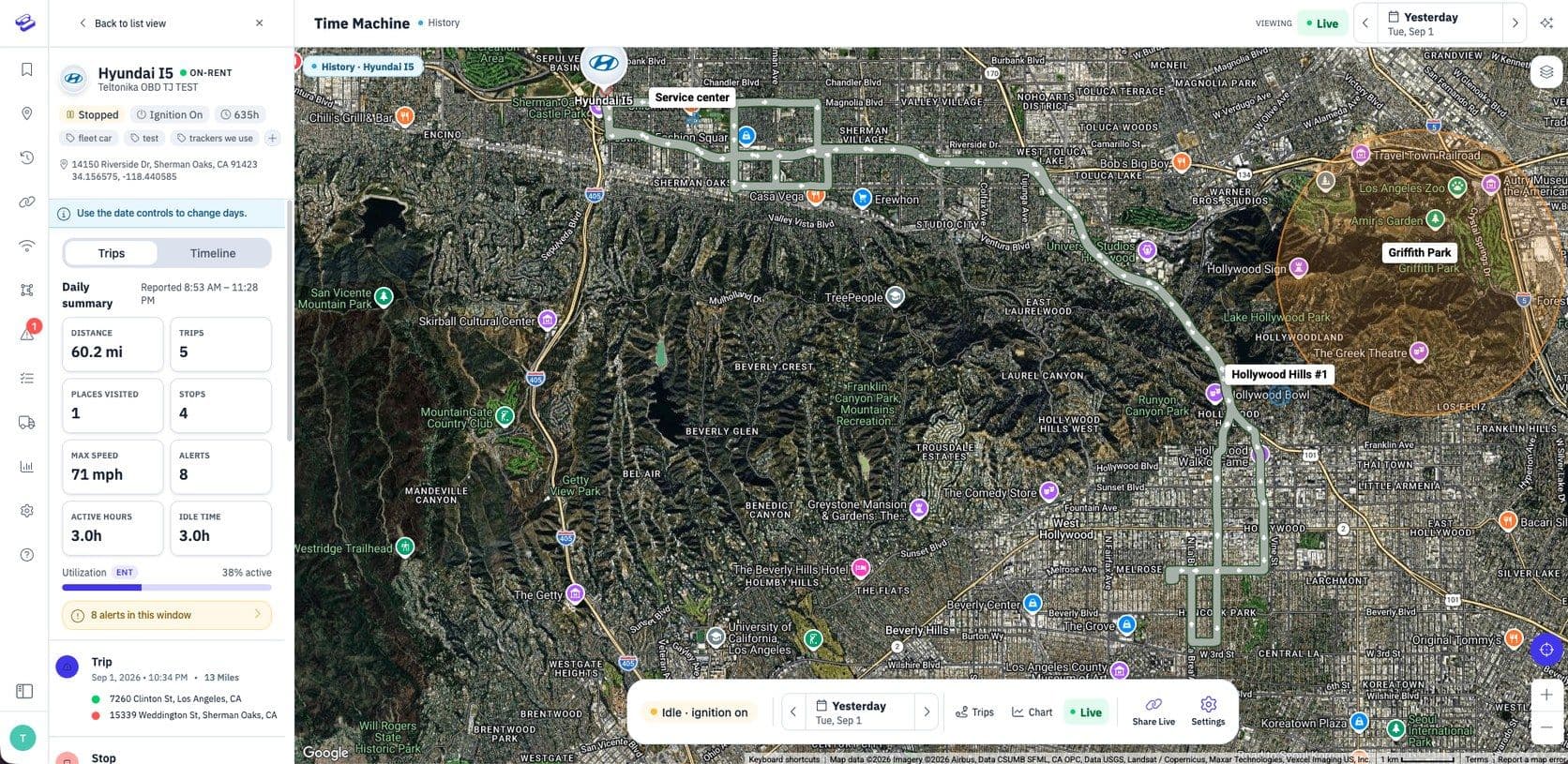
Your Hapn live map just got a major upgrade. You can now add custom map overlays — drawing your own zones, routes, and territories directly on top of your tracking view. It’s a simple way to layer context onto your map that makes your GPS data more actionable.
What Are Map Overlays?
Map overlays let you display custom shapes, lines, and boundaries on your map using KML files — a standard format supported by Google Maps, Google Earth, and most GIS tools. Once added, overlays appear on your live map alongside your assets, giving your team a clearer picture of where things should be versus where they actually are.
How to Add an Overlay in Hapn
Adding an overlay takes under a minute:
- Open the Live Map in your Hapn account.
- Click the layers icon in the top-right corner of the map.
- Under Map Overlays, click Add overlay.
- Give your overlay a name.
- Paste in a public KML URL — for example, from a Google My Maps export.
- Click Save. Your overlay appears on the map right away.
What Can You Use Map Overlays For?
Here are a few ways Hapn customers can put overlays to work:
- Service territories — Draw the zones your team covers so dispatchers can assign jobs by area without guessing.
- Project sites — Mark active construction or installation sites to see which assets are on-site at a glance.
- Planned routes — Upload intended routes and compare them visually against actual GPS paths.
- Restricted zones — Highlight areas where assets or vehicles should not travel.
- Customer or partner locations — Group sites by account to see how your fleet is distributed across customers.
How to Create a KML File
If you don’t already have a KML file, the easiest way to make one is with Google My Maps:
- Go to maps.google.com/mymaps and create a new map.
- Draw your zones, add markers, or import locations from a spreadsheet.
- Click the three-dot menu next to your layer and select Export to KML/KMZ.
- Check Export as KML and download the file.
- Host it somewhere publicly accessible — Google Drive with public link sharing enabled works well.
- Copy the file URL and paste it into the Add overlay dialog in Hapn.
Other tools that export KML include Google Earth Pro, ArcGIS, QGIS, and a variety of online KML editors.
Map overlays are available now to all Hapn customers. Head to your live map, click the layers icon, and start building out your view.
Explore Hapn on a live equipment fleet
Click around the real platform — a live mixed fleet with dummy data. No sales call, takes a few minutes.
Volume discounts • No 3-year contracts • Quote in ~24 hours


Get the latest news straight to your inbox.
Share Article
