
For a long time, the way Hapn customers organized their fleet had one option: Groups. Groups work great for org-chart structure — a customer here, a division there — but they're single-membership and rigid. The moment one excavator needs to be both "Heavy Equipment" and "On-Rent" and "Coastal Region," Groups start to crack. That's the gap Tags fill.
What are Tags?
Tags are free-form labels you can attach to any asset, place, or boundary in your Hapn account. Make as many as you want, apply as many as you want, and use them anywhere you'd want to slice your fleet differently than your hierarchy already does. They're the soft categorization layer that sits alongside Groups — not a replacement, just a more flexible way to mark what an asset is versus where it sits in your org.
A single tracker can carry as many tags as makes sense for your operation: "Fleet Vehicle," "Cold Storage," "Maintenance Due," "Region: Northeast" — whatever vocabulary your team already uses out loud.
Key Capabilities
A global tag library. Tags are managed centrally in your Organization Platform Settings. Create, rename, delete, and see live usage counts — so you always know which labels are pulling weight and which are stale.
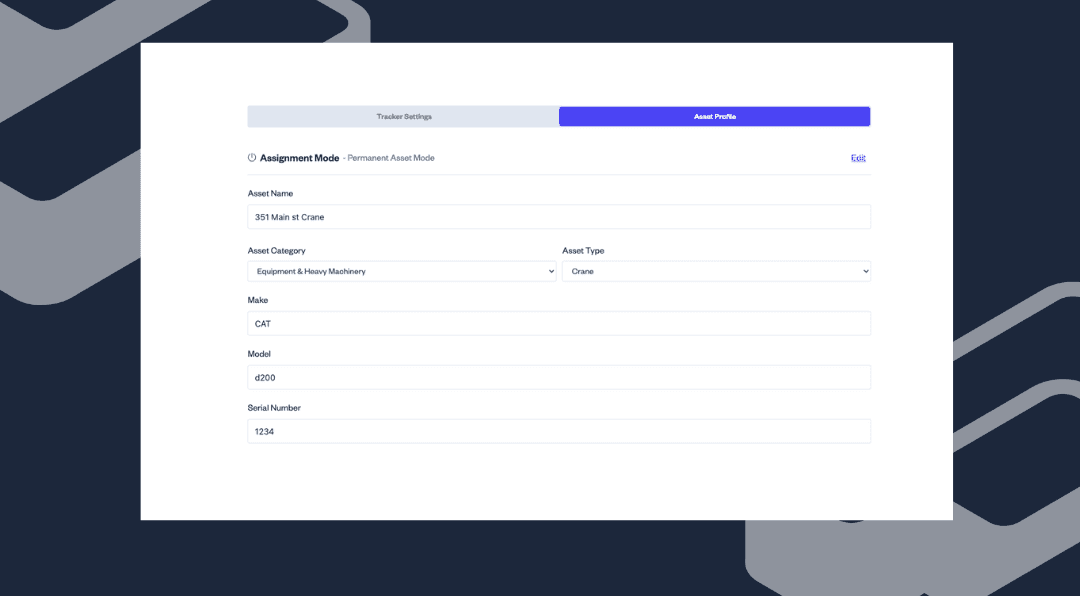
Apply tags inline. From any asset profile, click + Add tag at the top to open a quick picker. Type to search existing tags, or type a brand-new name and create it on the spot — the tag is added to your library and applied in one move.
Filter the live map. A new unified Filters dropdown on the map combines Status, Battery, and Tags in one place. Pick any combination of tags, choose Match ANY or Match ALL, and the map filters in real time. Bookmark the URL to share that filtered view with your team.
Filter every report. Tag filters drop into the existing report filter module. Run a one-time "all Fleet Vehicles tagged Maintenance Due" report, or schedule it as a recurring digest — same surface, same flow.
Edit tags in bulk. Select multiple trackers from Asset Tracker Management and use the new Edit Tags action in the floating action bar to add tags to all of them at once — or switch to Remove mode to pull a tag off a whole batch when a rental ends, a route changes, or a project wraps.
How It Works
- Build your library. Head to Organization Platform Settings → Tags and create the categories you care about — fleet roles, maintenance states, customer assignments, regions, anything.
- Apply tags. From any asset profile, hit + Add tag at the top of the page. Type to search, click to apply, or type a new name to create it on the fly.
- Filter anywhere. Open the Filters dropdown on the live map, or add a Tags filter to any report. Pick the tags you want, choose ANY or ALL, and you're done.
- Maintain at scale. Use bulk Edit Tags from Asset Tracker Management when you need to add or remove tags across a group of trackers in one shot.
Why Tags?
For fleet operators, Tags unlock the kind of dynamic categorization that's been awkward to express with Groups alone. Mark vehicles by route, by season, by service tier; pull a clean report on "all assets tagged Maintenance Due in the Southwest" without building a parallel spreadsheet to track it. For rental operators, tag equipment by current customer and remove the tag in bulk when the contract ends — your live map reflects who has what, in real time. And for individual users tracking personal vehicles, equipment, or family devices, Tags add a lightweight way to mentally bucket what you're tracking without making anything more complicated.
Most of all, Tags lay the foundation for what's next: tag-based alerts, tag-targeted scheduled reports, and the kind of dynamic audiences that make automation actually useful.
Get Started Today
Tags are live now in the Hapn web app for every account. Open Organization Platform Settings → Tags to start building your library, or jump straight to any asset profile and hit + Add tag to try the inline picker.
As always, if you've got feedback or ideas for what should come next — tag-based alerts, more bulk operations, mobile support — we want to hear it.
— TJ
Explore Hapn on a live equipment fleet
Click around the real platform — a live mixed fleet with dummy data. No sales call, takes a few minutes.
Volume discounts • No 3-year contracts • Quote in ~24 hours

Get the latest news straight to your inbox.
Share Article
